
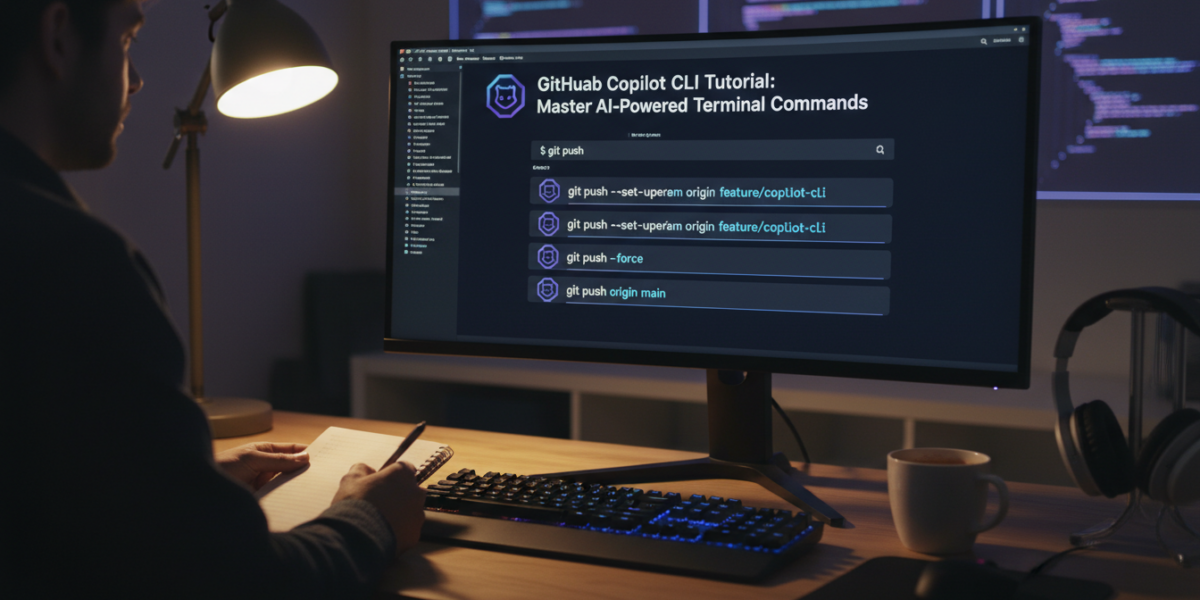
GitHub Copilot CLI streamlines terminal workflows by providing AI-driven command suggestions, explanations, and corrections for shell, Git, and GitHub CLI operations. This tool significantly boosts developer productivity and reduces the need to memorize complex commands.
Key Takeaways
- GitHub Copilot CLI brings AI-powered command suggestions and explanations directly to your terminal.
- It significantly boosts productivity by reducing the need to recall complex shell, Git, and GitHub CLI commands.
- Easy installation via npm or gh extension, requiring GitHub Copilot subscription and GitHub CLI.
- Supports generating, explaining, and correcting commands, making it a versatile assistant for developers.
- The tool is part of a broader trend towards integrating AI into core development workflows.
What is GitHub Copilot CLI?
GitHub Copilot CLI extends the capabilities of GitHub Copilot into your command-line interface. Instead of searching documentation or struggling to remember syntax, developers can interact with Copilot directly in their terminal using natural language prompts. This tool aims to make the terminal more accessible and efficient for everyone, from beginners to seasoned professionals.
It provides intelligent suggestions for various tasks, including standard shell commands, intricate Git operations, and specific GitHub CLI functionalities. Think of it as an AI assistant that understands your intent and translates it into executable commands.
Why Use GitHub Copilot CLI? Key Benefits
Leveraging GitHub Copilot CLI offers several compelling advantages for developers. It enhances productivity, reduces mental overhead, and lowers the barrier to entry for complex command-line tools.
- Increased Productivity: Generate complex commands quickly, saving time spent on searching documentation or trial-and-error.
- Reduced Cognitive Load: No longer memorize every flag and option for various commands. Just describe what you want, and Copilot will suggest it.
- Learning Aid: Understand unfamiliar commands better through Copilot’s explanations, fostering a deeper understanding of terminal operations. This is similar to how tools like Claude Code Tutorial provide learning support in coding environments.
- Error Prevention: Get suggestions for corrections when your commands are incorrect or incomplete.
- Streamlined Git Workflow: Simplify complex Git operations, making version control more intuitive.
Getting Started: Installation and Setup
To begin using GitHub Copilot CLI, you’ll need to meet a few prerequisites and then proceed with a straightforward installation process.
Prerequisites
Before installing, ensure you have the following:
- GitHub Copilot Subscription: GitHub Copilot CLI requires an active GitHub Copilot subscription.
- GitHub CLI (
gh) Installed: The Copilot CLI is often integrated as an extension of the GitHub CLI. - Node.js and npm: Some installation methods rely on Node Package Manager (npm).
Installing Copilot CLI
There are typically two primary ways to install GitHub Copilot CLI:
Via GitHub CLI Extension:
gh extension install github/gh-copilot
Via npm (Node Package Manager):
npm install -g @github/copilot-cli
After installation, you might need to initialize it or configure your shell for proper auto-completion.
Authentication and Configuration
Once installed, you’ll need to authenticate with GitHub. This usually involves running a command like gh auth login if you haven’t already, and then connecting Copilot CLI:
github-copilot auth
Follow the prompts to authorize the CLI tool with your GitHub account. This step links your active Copilot subscription to the terminal utility. Several products from Microsoft now use the ‘Copilot’ name, and this unified authentication is key across them, as explored in How Many Products Does Microsoft Have Named ‘Copilot’ in 2026?
Mastering GitHub Copilot CLI Commands
The core functionality of GitHub Copilot CLI revolves around three main commands: ?? for shell, git? for Git, and gh? for GitHub CLI.
Shell Command Generation and Explanation
To get suggestions for general shell commands, simply type ?? followed by your natural language query.
?? find files larger than 1GB in current directory
Copilot will then provide a suggested command, which you can accept, modify, or ask to explain. This makes even complex find or grep operations much more approachable.
Git Commands with Copilot
Working with Git becomes significantly easier with Copilot CLI. Use git? to query for Git-related operations.
git? undo my last commit but keep the changes
This will suggest the appropriate git reset command, complete with flags. It’s an invaluable tool for both new developers and those who occasionally forget specific Git incantations. For further automation in development, explore tools like those discussed in AI Crypto Trading Bot Setup, which also leverages AI for specific tasks.
GitHub CLI (gh) Commands
For interaction with GitHub repositories directly from your terminal, use gh?.
gh? create a new pull request from my current branch to main
Copilot will provide the correct gh pr create command, filling in arguments as needed. This seamlessly integrates with the GitHub ecosystem.
Explaining Mysterious Commands
Beyond generation, Copilot CLI can also explain commands you’re unsure about. Just type ?? explain <command>:
?? explain 'awk -F: '{print $1}' /etc/passwd'
It will break down the command, explaining each part and its function, which is excellent for learning and troubleshooting.
Pro Tip: When Copilot suggests a command, it often provides an option to ‘explain’ it further. Always take advantage of this feature to deepen your understanding of the proposed solution.
Advanced Tips and Tricks
Unlock the full potential of GitHub Copilot CLI with these advanced techniques.
Customizing Copilot CLI Behavior
You can often configure options such as preferred shell, default behaviors, and output formats. Check the official GitHub Copilot CLI documentation for available configuration settings. This personalization can further optimize your workflow with the tool.
Integrating with Your Workflow
Consider integrating Copilot CLI into your custom shell scripts or aliases. While it’s primarily interactive, understanding its behavior can help you design more robust automated tasks that prompt for human verification or input when necessary.
Common Issues and Troubleshooting
Even with advanced tools, problems can sometimes arise. Here are a few common issues and their solutions:
- Authentication Errors: Ensure your GitHub Copilot subscription is active and you’ve correctly authenticated with
github-copilot authandgh auth login. - Command Not Found: Verify that
gh-copilotis in your PATH if installed via npm, or that the GitHub CLI extension is correctly installed and recognized. - Incorrect Suggestions: If Copilot provides irrelevant suggestions, try being more specific in your natural language prompt. AI models, including advanced ones used in Anthropic’s Project Glasswing, rely heavily on clear input.
- Performance Problems: Ensure your internet connection is stable, as Copilot relies on cloud-based AI services.
GitHub Copilot CLI vs. Other AI Terminal Tools
The landscape of AI-powered terminal assistants is growing. While GitHub Copilot CLI excels at GitHub and Git integration, other tools might offer different strengths:
| Feature | GitHub Copilot CLI | Other AI Terminal Tools (e.g., Warp AI) |
|---|---|---|
| Primary Focus | Shell, Git, GitHub CLI commands | General shell, system administration, coding snippets |
| Integration | Deep integration with GitHub ecosystem | Broader ecosystem support, may be tied to a specific terminal emulator |
| Explanation | Yes | Often yes |
| Correction | Yes | Yes |
| Prerequisites | Copilot subscription, GitHub CLI | Varies, often subscription or specific terminal install |
Choosing the right tool often depends on your primary development environment and daily tasks. For developers deeply embedded in the GitHub ecosystem, Copilot CLI is a natural fit.
The Future of AI in the Terminal
The emergence of tools like GitHub Copilot CLI signifies a significant shift in how developers interact with their command lines. We are moving towards an era where AI acts as an omnipresent, intelligent assistant, not just for code generation but for entire development workflows.
Expect to see more advanced context awareness, deeper integration with local project files, and multimodal capabilities in future iterations. These advancements promise to make development faster, more intuitive, and less prone to human error, echoing the transformative power of AI in areas like Crypto AI Trading Apps.
Conclusion
GitHub Copilot CLI is a powerful addition to any developer’s toolkit, bringing the efficiency and intelligence of AI directly into the terminal. By simplifying command generation, explanation, and correction for shell, Git, and GitHub CLI, it empowers developers to work faster and smarter.
Embrace this tool to enhance your command-line proficiency and streamline your daily development tasks. The integration of AI continues to redefine productivity in the tech world.
FAQ
Q: What operating systems does GitHub Copilot CLI support?
A: GitHub Copilot CLI is generally supported on macOS, Linux, and Windows (via WSL or other compatible terminals), leveraging the underlying GitHub CLI and Node.js environments.
Q: Do I need a GitHub Copilot subscription to use the CLI version?
A: Yes, an active GitHub Copilot subscription is required to use GitHub Copilot CLI, as it relies on the same AI service.
Q: Can GitHub Copilot CLI execute commands automatically?
A: No, GitHub Copilot CLI suggests commands but does not execute them automatically. You must explicitly accept and run the suggested command, ensuring you maintain control over your terminal actions.
Q: Is GitHub Copilot CLI free?
A: While the tool itself is part of the GitHub Copilot ecosystem, an active GitHub Copilot subscription, which is a paid service for most users, is required to use its functionality.