
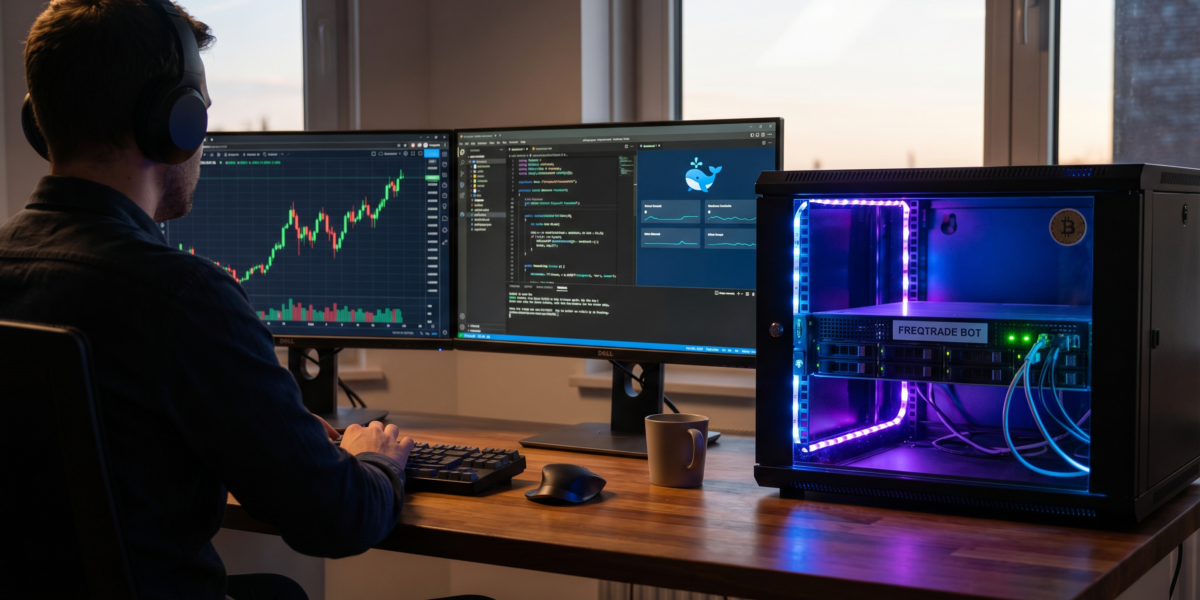
This Freqtrade Docker deployment guide details how to set up a robust, isolated, and consistent live trading infrastructure using Docker. It covers step-by-step instructions for deployment, managing persistent data, updates, and crucial security considerations for automated crypto trading.
Use Docker to deploy Freqtrade for consistent, isolated, and reproducible trading environments. This method avoids dependency conflicts, simplifies updates, and ensures your bot runs identically across development, backtesting, and live trading setups.
Key Takeaways
- Docker provides isolated, reproducible environments for Freqtrade bots, enhancing stability and simplifying deployment.
- Containerization eliminates dependency conflicts and ensures consistent execution across all stages (development, backtesting, live trading).
- Persistent data (config, strategies, database) must be mounted from the host to ensure continuity across container restarts.
- Regularly back up your
user_datadirectory, especially the SQLite database, to prevent data loss. - Utilize Docker commands like
logs,ps,stop, andstartfor effective management and monitoring of your Freqtrade bot.
Why Docker for Freqtrade?
Docker containers encapsulate Freqtrade, its Python dependencies, and system tools into a single deployable unit. This eliminates "it works on my machine" problems when moving from backtesting to live trading. Your strategy will execute with identical library versions (pandas, NumPy, TA-Lib) regardless of the host OS.
Live trading requires stability. Docker ensures your environment doesn’t change between restarts. You avoid situations where a system update breaks TA-Lib or conflicts with Python packages. The containerized approach also simplifies running multiple bots with different configurations on one machine.
Security is another benefit. The bot runs isolated from your host system. If an exchange API key were compromised, the damage would be contained within the container. You can further restrict network access using Docker’s built-in firewall rules.
Freqtrade Deployment Methods: Native vs. Docker
Understanding the differences between native installation and Docker deployment helps you choose the best approach for your Freqtrade setup. Each method has distinct advantages for performance, consistency, and maintenance.
| Feature/Metric | Native Installation | Docker Deployment |
|---|---|---|
| Setup Complexity | High (manual dependency resolution) | Low (pre-built image) |
| Environment Consistency | Low (OS-dependent) | High (identical across hosts) |
| Update Process | Manual (pip/OS package manager) | Single command (docker pull) |
| Resource Usage | Lower (no overhead) | Higher (~200MB container overhead) |
| Security Isolation | Limited (runs on host OS) | Strong (containerized) |
| Multiple Instance Management | Complex (virtualenv, port conflicts) | Simple (separate containers) |
| Debugging | Direct access to host tools | Requires docker exec or volume mounts |
Native installation works when you need maximum performance for high-frequency strategies. Docker wins for reliability and maintainability—critical for live trading where uptime matters. For a deeper dive into setting up your environment for trading bots, you might find our Crypto Trading Bot VPS Deployment Guide useful.
Prerequisites for Docker Deployment
You need Docker Engine installed on your host machine. On Ubuntu 22.04, run the following commands to install Docker and Docker Compose:
sudo apt update
sudo apt install docker.io docker-compose
sudo systemctl enable --now docker
Add your user to the docker group to avoid using sudo with every Docker command:
sudo usermod -aG docker $USER
newgrp docker
Verify your installation with docker run hello-world. You’ll also need a text editor (e.g., nano/vim) and basic CLI skills. The host machine should have at least 2GB RAM and 10GB disk space for decent performance, especially if you plan to run multiple instances of trading bots.
Step-by-Step Docker Deployment
Deploying Freqtrade with Docker involves a few straightforward steps, from pulling the official image to running your bot.
Pull the Official Freqtrade Image
The Freqtrade team maintains official images on Docker Hub. Pull the latest stable version to ensure you’re using a well-tested release:
docker pull freqtradeorg/freqtrade:stable
Always specify the tag. Avoid latest for live trading as it might introduce unintended breaking changes. Use stable or a specific version like 2024.1.0 for greater reliability.
Create a Project Directory
Proper organization is key for managing your Freqtrade setup. Create a dedicated directory structure for your bot files:
mkdir ~/freqtrade-bot
cd ~/freqtrade-bot
mkdir user_data
The user_data directory will hold your configurations, strategies, and database. This directory will be mounted into the container to ensure data persistence.
Initialize Configuration
Generate the default Freqtrade configuration file directly inside the container:
docker run --rm -v $(pwd)/user_data:/freqtrade/user_data freqtradeorg/freqtrade:stable new-config --config /freqtrade/user_data/config.json
This command creates user_data/config.json. You must edit this file to include your exchange API keys and specific trading settings. Use nano user_data/config.json to configure your timezone, stake amount, and exchange credentials before proceeding.
Run Freqtrade in Docker
Start your Freqtrade bot as a detached Docker container with volume mounts for persistence:
docker run -d --name freqtrade \
  -v $(pwd)/user_data:/freqtrade/user_data \
  freqtradeorg/freqtrade:stable trade --strategy MyStrategy --config /freqtrade/user_data/config.json
The -d flag runs the container in detached mode, meaning it will run in the background. Ensure your configuration and strategy files are correctly placed within the user_data directory. The container will stop if Freqtrade cannot locate the specified strategy or config.
Essential Docker Commands for Freqtrade Operators
Mastering these Docker commands is crucial for effective management and troubleshooting of your Freqtrade bot.
| Command | Purpose | Example for Freqtrade |
|---|---|---|
docker ps |
List running containers | docker ps (see if freqtrade is up) |
docker logs |
View container logs | docker logs freqtrade (debug errors) |
docker stop |
Stop a container | docker stop freqtrade (graceful shutdown) |
docker start |
Start a stopped container | docker start freqtrade (restart after config edit) |
docker exec |
Run command inside container | docker exec -it freqtrade /bin/bash (shell access) |
docker pull |
Update image | docker pull freqtradeorg/freqtrade:stable (get new version) |
docker run |
Create new container | See above deployment example |
docker rm |
Remove container | docker rm freqtrade (delete after testing) |
Logs, especially with docker logs --tail 50 freqtrade, are your primary debugging tool. Always stop containers before attempting to remove them to prevent data corruption or issues.
Managing Persistent Data
Docker containers are ephemeral by nature. Any data not explicitly mounted from the host will be lost upon container restart or deletion. Therefore, it’s vital to correctly manage persistent volumes for your Freqtrade data.
Config and Strategies
We’ve already configured the user_data directory to be mounted into the container. This directory should hold all critical bot operational files, ensuring they persist independently of the container’s lifecycle.
config.json: Your primary configuration file containing sensitive API keys and general bot settings.strategies/: This subdirectory stores all your Python strategy files.data/: An optional directory to store market data, especially useful for backtesting.user_data/db/: This is where Freqtrade’s SQLite database file is automatically created and stored.
Always back up this directory regularly. For strategies and configurations, use version control, but ensure you never commit sensitive API keys directly.
Database Persistence
Freqtrade utilizes SQLite as its default database, with the file typically located at user_data/db/freqtrade.sqlite. This database is critical as it stores your trade history, wallet balances, and the current state of the bot.
Losing this file means the bot will effectively lose its memory, starting from scratch without knowledge of open trades. This can lead to critical issues like duplicate orders or failure to manage existing positions. Therefore, verifying your volume mount for the database is functioning correctly is paramount for consistent Freqtrade bankroll management.
Persistent Storage Options for Freqtrade Data
Choosing the right storage option for your Freqtrade data impacts its reliability, portability, and scalability. Consider these options based on your deployment needs.
| Storage Type | Description | Freqtrade Use Case | Pros | Cons |
|---|---|---|---|---|
| Local Directory Mount | Bind host directory to container | Config, strategies, database | Simple, fast | Tied to one host |
| Docker Volume | Managed storage volume | Database, configs | Portable, Docker-managed | Slightly more complex |
| Network Attached Storage (NAS) | Remote storage mount | Multi-node setups | Redundant, scalable | Network latency |
| Cloud Storage Sync | Sync files to cloud | Config/strategy backup | Off-site backup | Not real-time |
For most individual users, local directory mounts offer sufficient simplicity and speed. Docker volumes are a better choice if you anticipate migrating your bot between different hosts. NAS or cloud synchronization options are typically reserved for advanced setups requiring high availability and redundancy.
Updating Freqtrade and Strategies
Keeping Freqtrade and your strategies up-to-date is essential for security, performance, and accessing new features.
To update Freqtrade to a new version, follow this sequence:
docker stop freqtrade
docker rm freqtrade
docker pull freqtradeorg/freqtrade:stable
docker run ... (same command as before)
Your strategies and configuration files, being external to the container in user_data, remain safe during this process. Always test updates in a paper trading environment first, as major version changes can introduce breaking changes.
Updating strategies is more straightforward. Simply edit the Python file located in user_data/strategies/, then restart the Freqtrade container:
docker restart freqtrade
The bot will reload the updated strategy. Exercise caution, as strategy changes can impact open trades. It’s highly recommended to test any strategy modifications thoroughly in dry-run mode before deploying them to live trading.
Monitoring and Logs
Effective monitoring and logging are crucial for understanding your Freqtrade bot’s behavior and diagnosing issues.
Freqtrade outputs its logs to stdout, which Docker captures. You can view these logs in real-time:
docker logs -f freqtrade
The -f flag allows you to follow the log output as it happens, displaying trade executions, error messages, and heartbeat signals.
For more comprehensive monitoring, consider these tools and commands:
docker stats freqtrade: Provides real-time CPU, memory, network I/O, and disk I/O usage for the container.docker exec freqtrade freqtrade list-orders: Lists recently placed orders by your bot.docker exec freqtrade freqtrade show-trades: Displays a list of all completed trades handled by the bot.
For advanced monitoring setups, Freqtrade offers a built-in metrics endpoint. Expose port 8080 and scrape the /metrics endpoint with monitoring systems like Prometheus to gather detailed performance data.
Security Considerations
Securing your Freqtrade Docker deployment, especially your API keys, is paramount to protect your trading accounts.
Your exchange API keys are stored in config.json. Implement these security measures:
- Restrict file permissions: Ensure only necessary users can read this file by running
chmod 600 user_data/config.json. - Limited API key permissions: Always use API keys with the minimum required permissions, specifically disabling withdrawal capabilities on the exchange side. For an in-depth guide on API security, refer to our Hyperliquid API Wallet Security Guide.
- Docker secrets: For production environments, especially in a Docker Swarm context, consider using Docker secrets to manage sensitive data more securely.
By default, the container runs processes as root internally. For enhanced security, use the --user flag to run the container as a non-root user:
docker run -d --user 1000:1000 ...
Replace 1000 with your host’s user ID (UID) and group ID (GID). Test this setup thoroughly, as it may sometimes introduce file permission issues that need to be resolved.
Backup and Recovery
A robust backup and recovery strategy is indispensable for any live trading system. Always back up your entire user_data directory regularly.
The freqtrade.sqlite database file is exceptionally critical. Losing it means losing all your trade history, open positions, and bot state information, making recovery difficult and potentially leading to trade management errors.
You can automate daily backups using a simple cron job:
# Daily backup
0 2 * * * tar -czf /backup/freqtrade-$(date +%Y%m%d).tar.gz /home/user/freqtrade-bot/user_data
Regularly test your backups by performing a mock recovery. A backup is only valuable if you can successfully restore from it in a real-world failure scenario.
Troubleshooting Common Issues
Understanding how to diagnose and resolve typical problems can save significant downtime and frustration when operating your Freqtrade bot in Docker.
- Container won’t start: The first step is always to check
docker logs <container_name>. Most startup failures stem from missing strategy files, incorrect configurations, or syntax errors within yourconfig.json. - Permission errors: If Freqtrade cannot read or write to mounted directories, it’s likely a permission issue. Use
chownto ensure the user inside the container (or the user you specify with--user) has appropriate access to youruser_datadirectory. - Strategy not found: Double-check that your strategy Python file (e.g.,
MyStrategy.py) is correctly placed within theuser_data/strategies/directory and that the strategy name in yourdocker runcommand orconfig.jsonexactly matches the class name in your strategy file. - Database errors: A corrupted
freqtrade.sqlitefile can cause significant issues. If you suspect corruption, stop the bot, restore the database from a recent backup, and restart. Always ensure the bot is stopped before copying database files to prevent further corruption. - Network issues: If the container cannot access exchanges or the internet, verify your Docker network settings. Check your host machine’s firewall rules (e.g., UFW, iptables) to ensure they aren’t blocking outbound connections from Docker containers.
FAQ
What are the resource requirements for Freqtrade in Docker?
A typical Freqtrade container uses around 200-500MB of RAM and minimal CPU resources. Exact usage varies based on your strategy’s complexity, the number of currency pairs monitored, and trading frequency. Use docker stats to monitor resource consumption and scale your host machine accordingly.
Can I run multiple Freqtrade instances with Docker?
Yes, Docker makes it easy to run multiple Freqtrade instances. Each instance requires a unique container name, potentially different port mappings, and its own dedicated user_data directory for configuration and data. Be cautious when running multiple bots on the same exchange account; ensure your strategies are designed to avoid conflicts or use separate sub-accounts if supported by the exchange.
How do I update my strategy without restarting the bot?
Freqtrade does not natively support hot-reloading strategies within a running container. To apply strategy updates, you must restart the container after modifying the strategy file. Use docker restart freqtrade to achieve this with minimal downtime.
Is Docker necessary for Freqtrade?
No, Docker is not strictly necessary for Freqtrade; you can install it natively. However, Docker is highly recommended due to its benefits in simplifying deployment, ensuring environment consistency, and providing isolation. A native installation requires more manual maintenance and is more susceptible to environment-specific issues.
What happens if the Docker container crashes?
If your Freqtrade Docker container crashes, the bot will stop trading. To mitigate this, consider implementing Docker’s restart policies, such as --restart unless-stopped, which will automatically attempt to restart the container upon failure. It’s crucial to monitor for repeated crashes, as they often indicate a deeper problem with your bot’s configuration or strategy that needs investigation.